

What it is
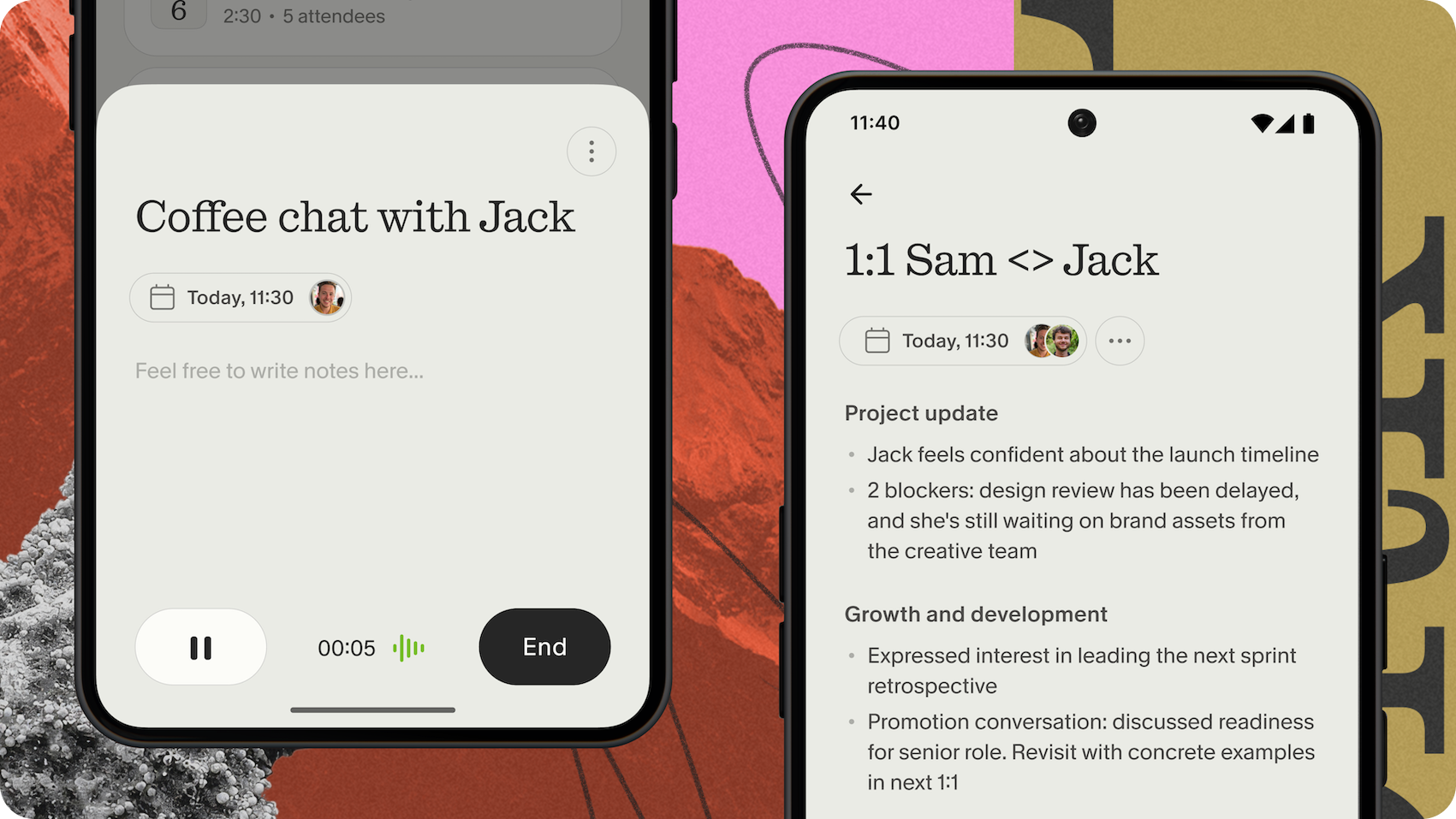
- An “AI notepad for back-to-back meetings”: notes, actions, and memory without a meeting bot.
- Desktop apps for macOS and Windows, mobile apps for iPhone and Android. The web app at notes.granola.ai is for viewing and editing only and can’t capture meetings.
- Works with Zoom, Google Meet, Teams, Slack huddles, and in-person meetings.
No bot in the call
What works
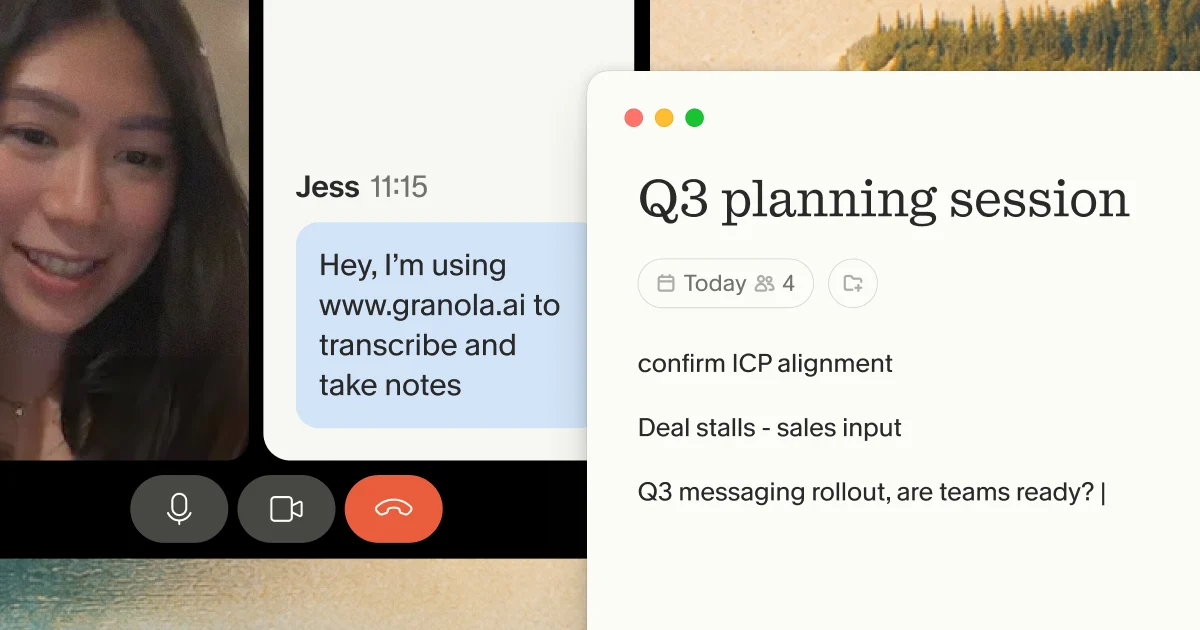
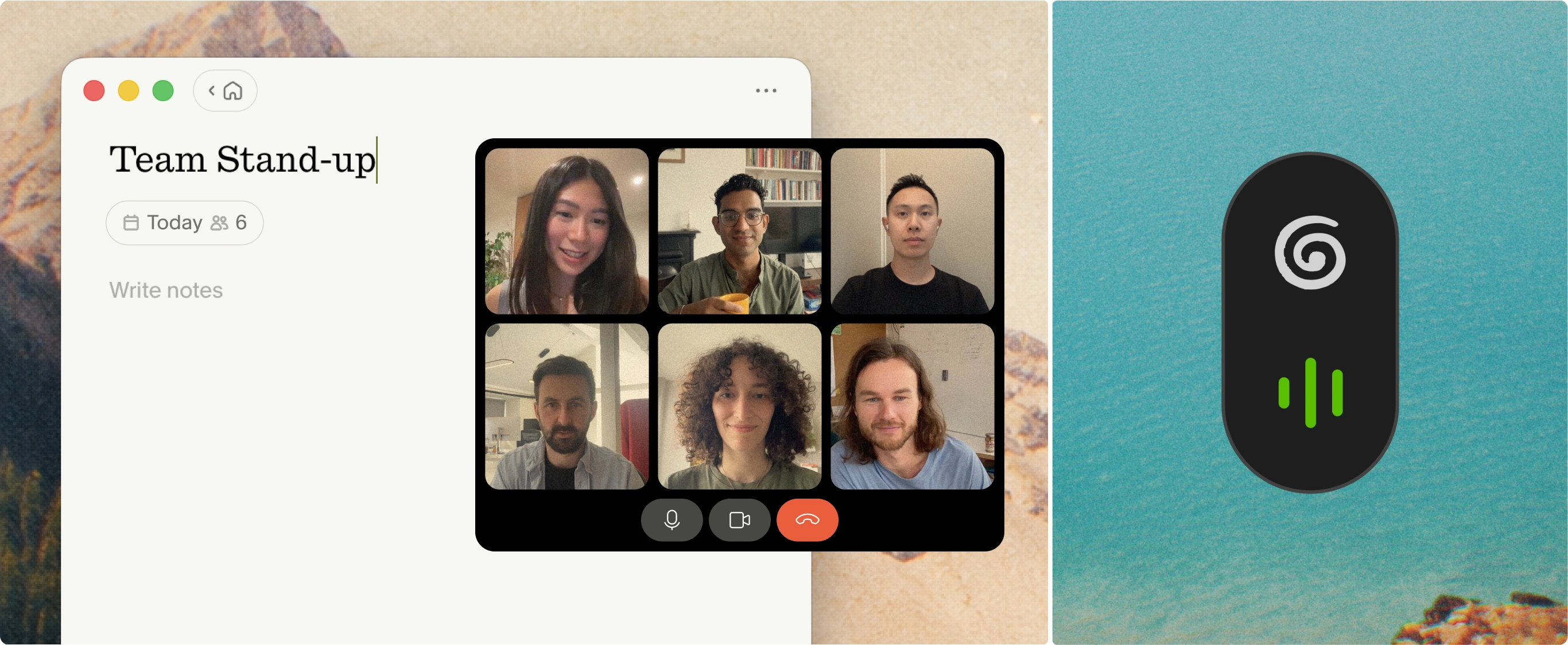
- Nothing joins the call. Granola runs only on your computer and uses your system audio and microphone, so other participants don’t see an extra attendee.
- It works with any meeting app, because it listens to the computer’s own audio.
- Capture starts only after a deliberate action: clicking a notification, opening the meeting’s note, or clicking New Note.
- The transcript shows where each line came from: green bubbles are your microphone and grey bubbles are other people on the call.
Takeaway
Being invisible makes the product feel smooth, but it means the user has to handle consent. Design the consent controls as carefully as the capture.
Pattern: Live TranscriptSystem audio plus mic, with green vs grey bubbles for who said what.
Pattern: Ambient Presence DisplaysCapture is invisible to the room unless the user turns disclosure on.
Notepad first
What works
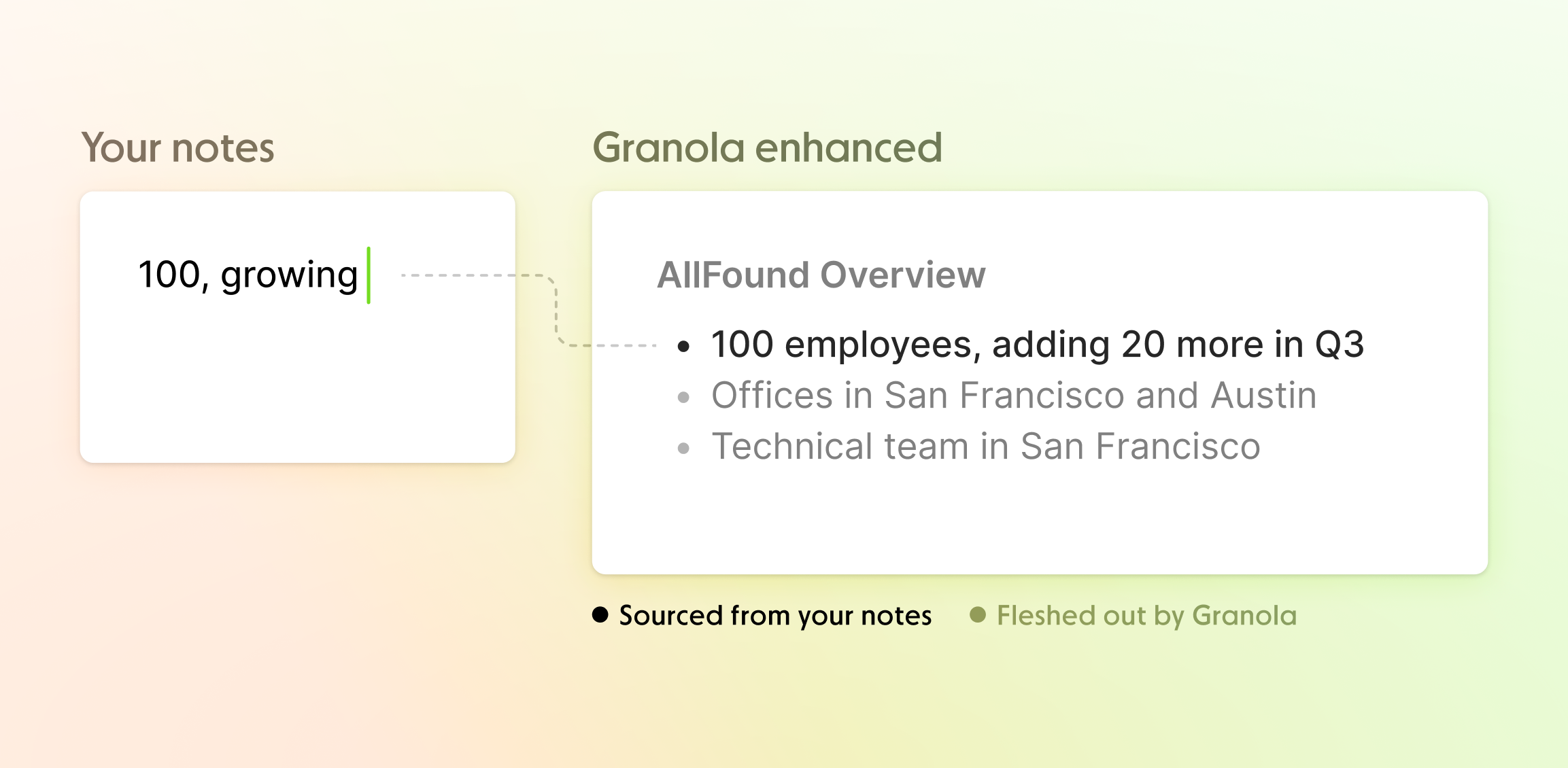
- The main surface is a blank notepad, not a transcript: write down as much or as little as you like.
- Enhanced notes are built from the transcript, your raw notes, and the calendar event, and your notes guide what the AI focuses on.
- You stay in control: edit the enhanced notes directly, or edit your raw notes and re-enhance.
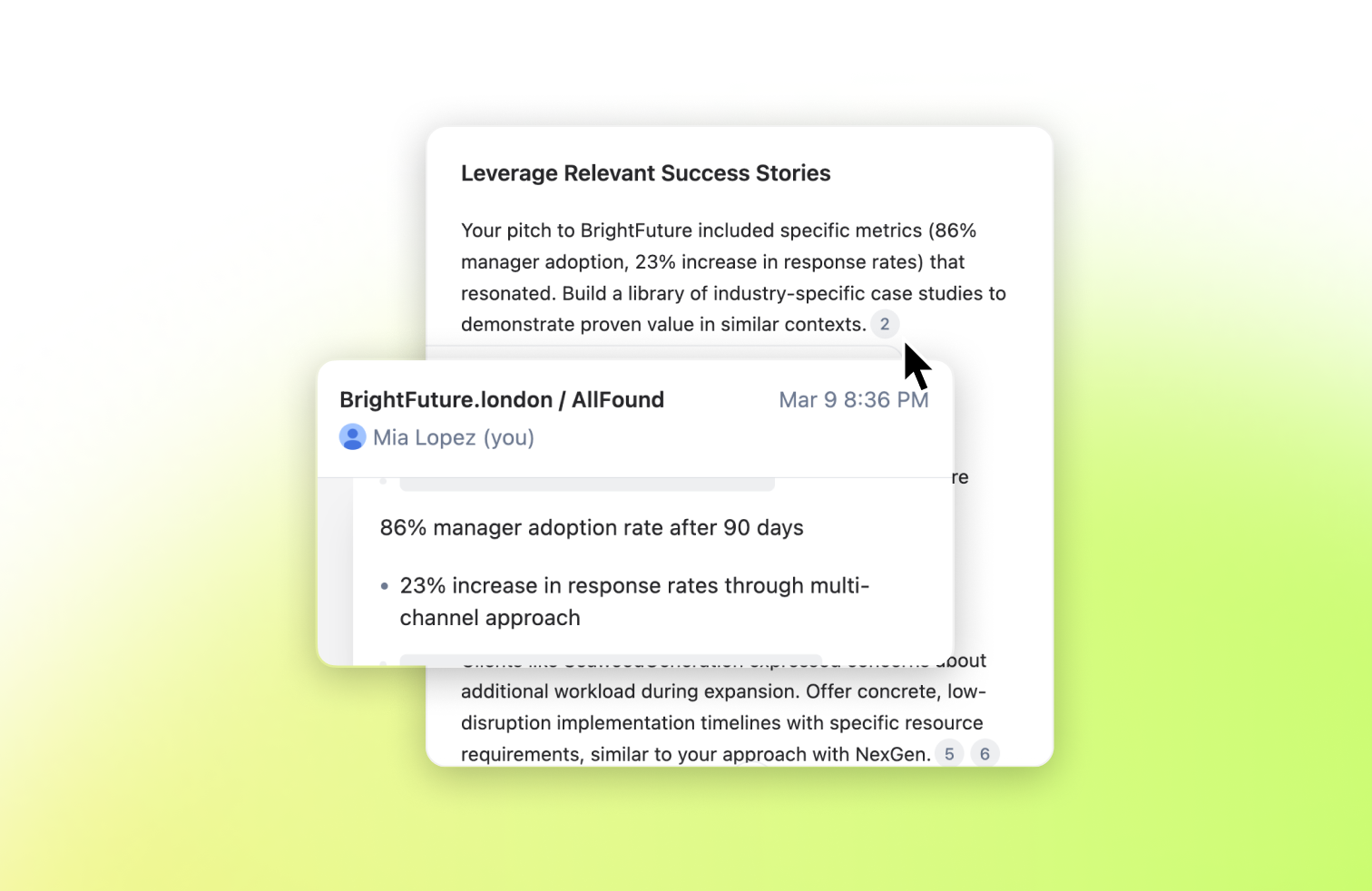
- In shared notes, viewers can hover over a point to see context from the transcript.
Takeaway
Let what the user types steer the AI, instead of replacing the user with the AI.
Pattern: Conversation SummaryEnhanced notes are guided by what you typed, not a generic dump of the transcript.
Pattern: CitationsShared viewers can hover a point to see matching transcript context.
Pattern: Audio Summarization
Templates and recipes
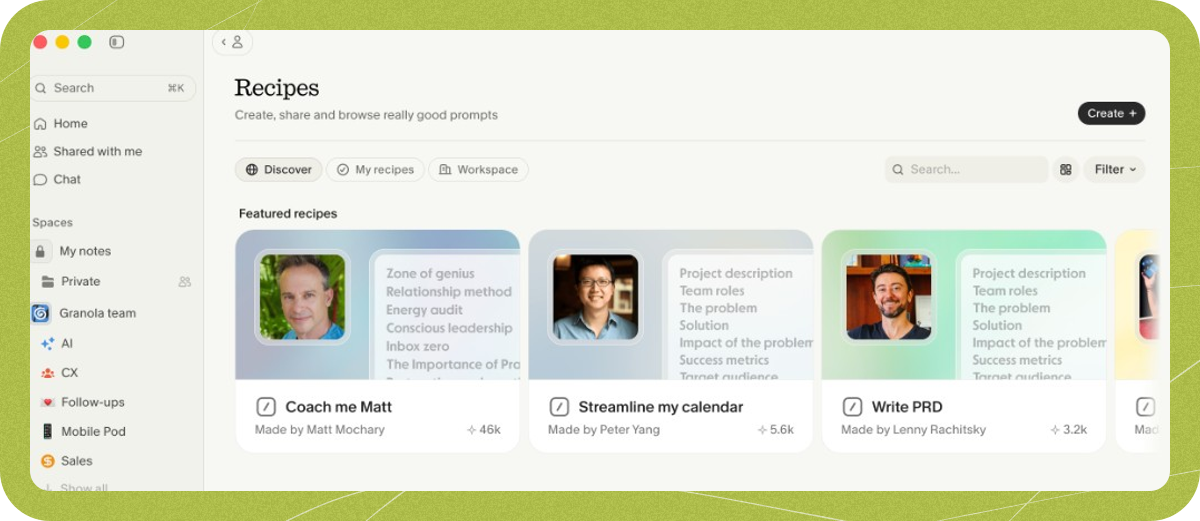
What works
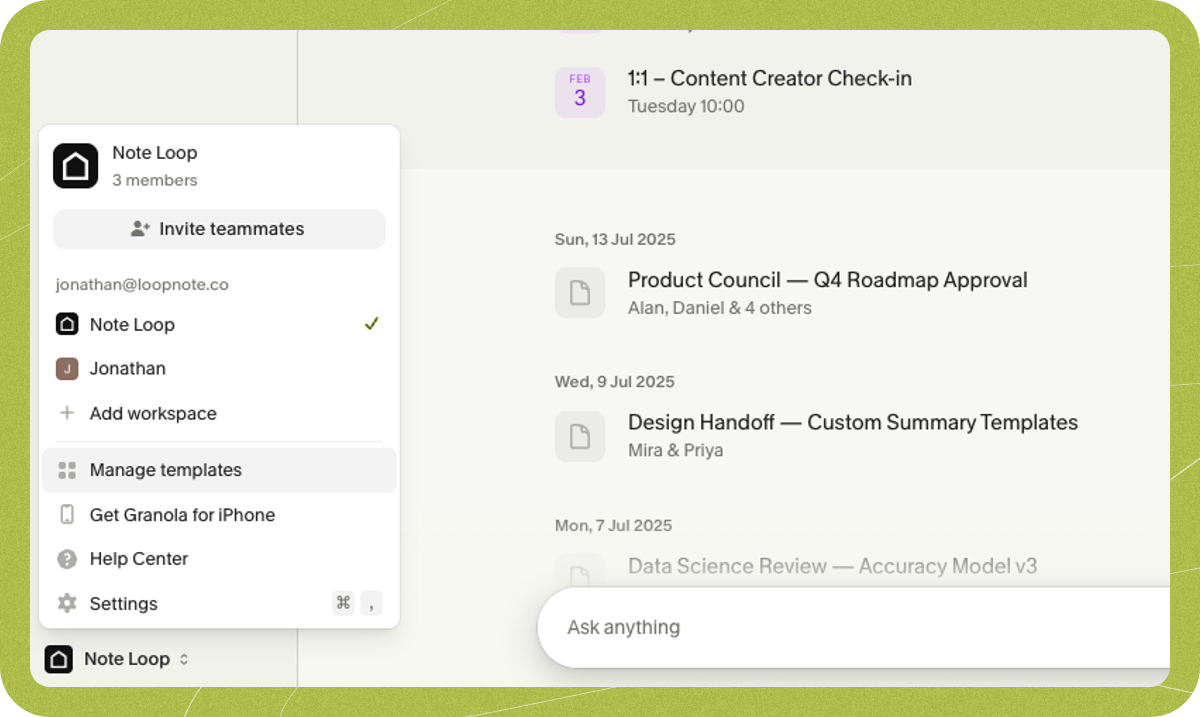
- Templates shape the enhanced notes for a type of meeting (1:1s, interviews, sales calls). Type / in the note during a call, or switch templates afterward, which regenerates the notes.
- The default templates you see depend on the user type you picked at install.
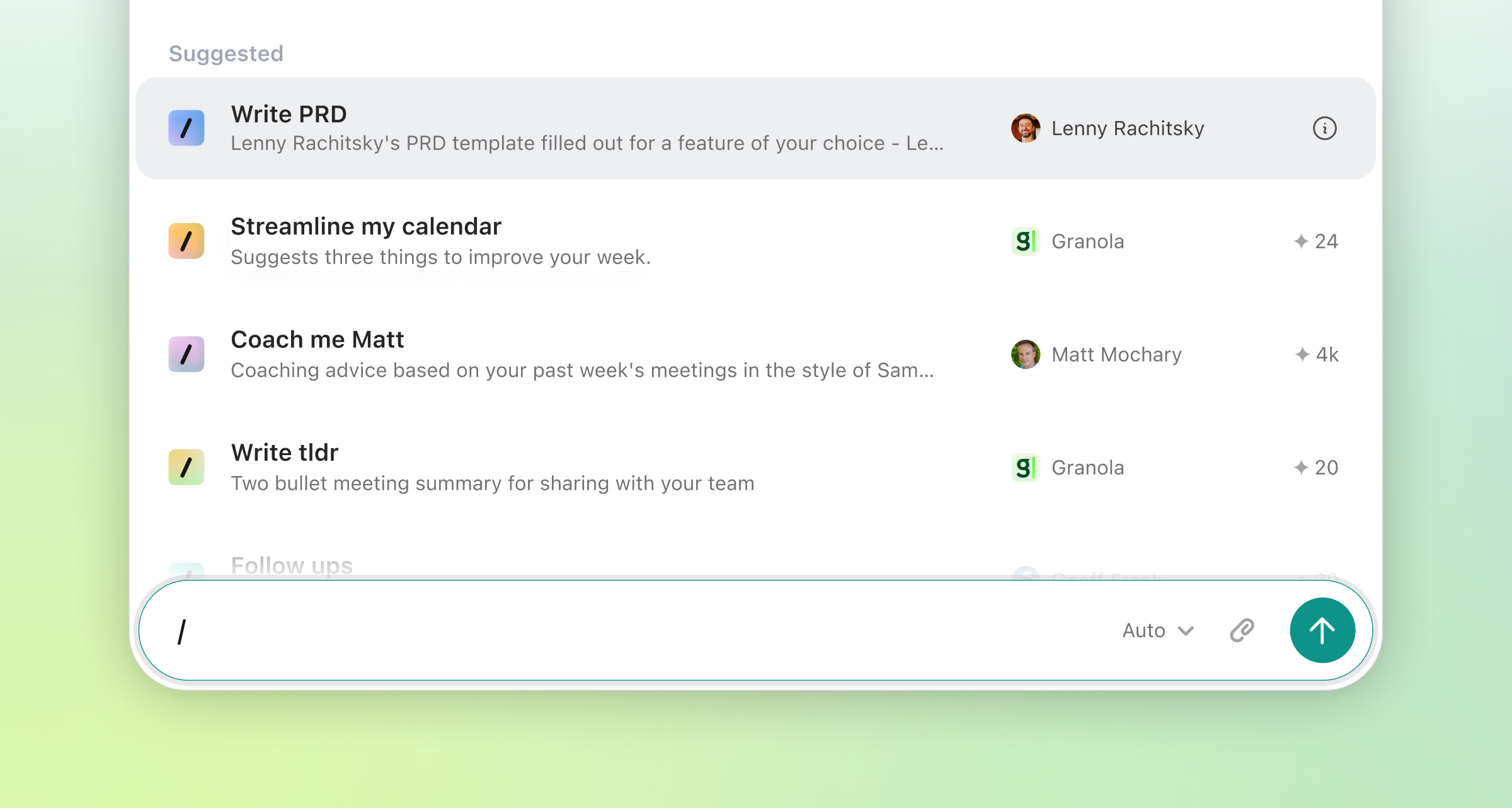
- Recipes are saved prompt templates for chat. Type / in the chat bar to see them in three groups: Discover, My recipes, and Workspace. Each is set to work on either a single meeting or multiple meetings.
- Recipes can be shared as a link (Private, Workspace, or Anyone with link) without exposing your notes.
Takeaway
Turn good prompts into named, shareable things, and expose them through one consistent shortcut.
Pattern: Conversation TemplatesOne / shortcut for note templates and chat recipes, including shareable recipe links.
Chat across meetings
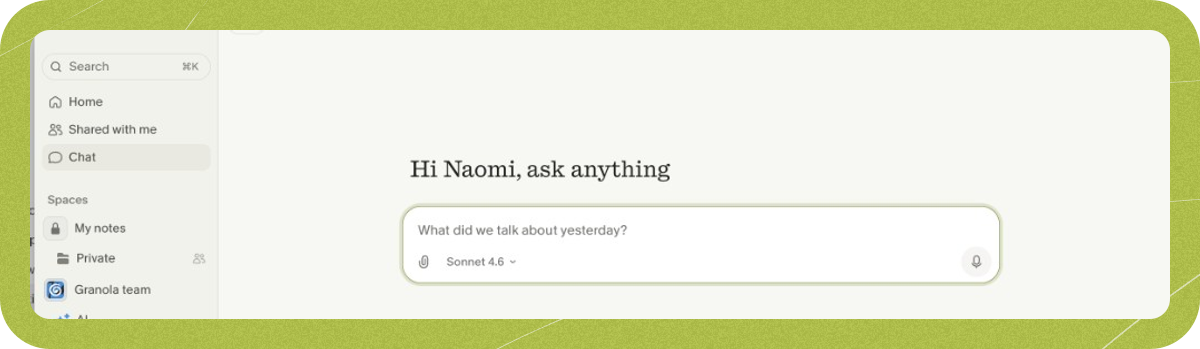
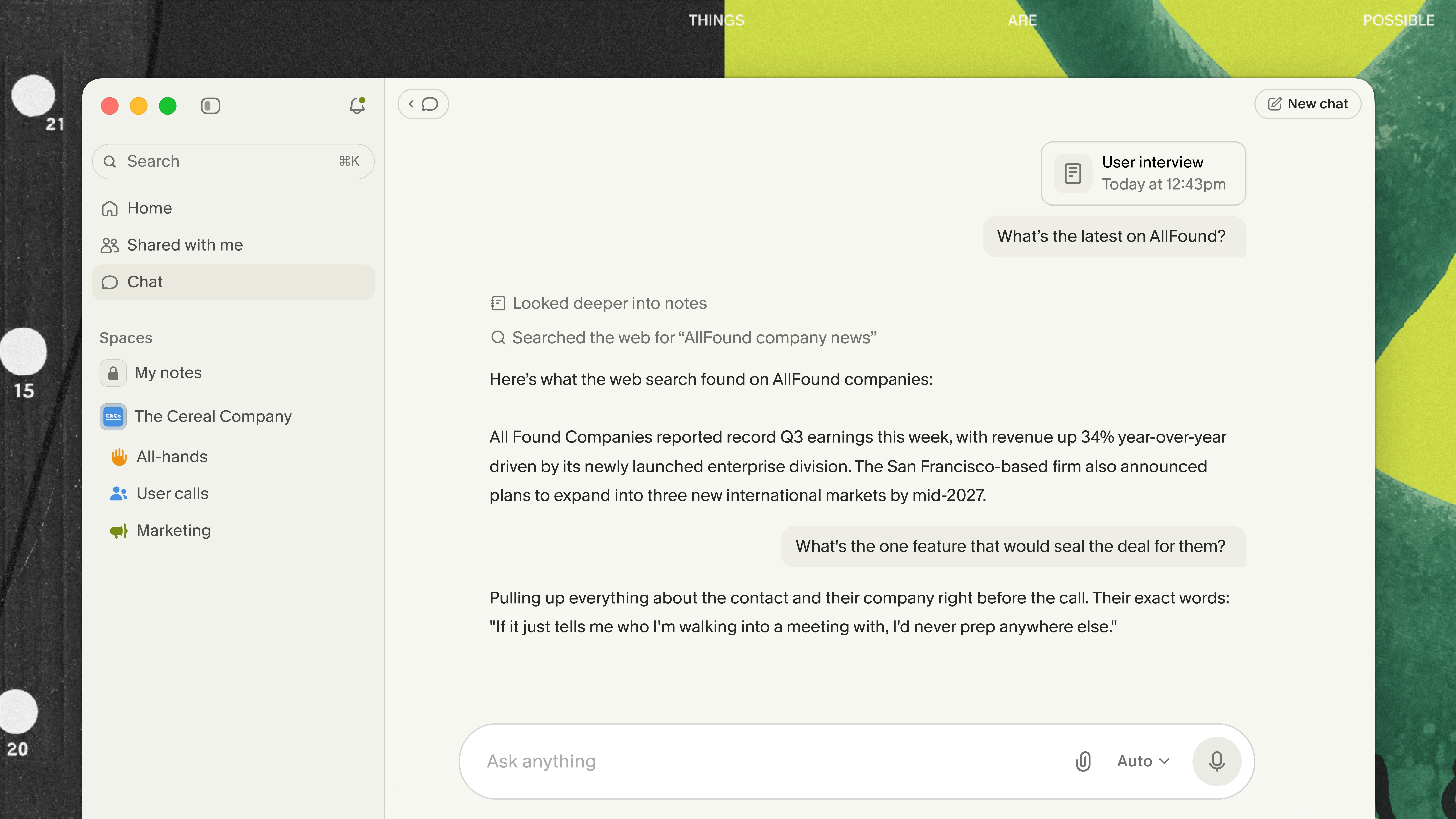
What works
- Chat’s scope depends on where you open it: one meeting, all meetings from home, a folder, or a person or company record (desktop).
- The docs frame chat around before, during, and after a meeting, for example catching up on what you missed while the call is still going.
- File uploads add context from outside your meetings (not on iOS).
- The homepage pitches perfect meeting memory: “What did I promise to do in my meetings this week?”
Takeaway
Let the place a user opens chat set what it searches, then show that scope clearly.
Pattern: Memory Scope ToggleWhere you open chat (meeting, folder, person, home) sets what it searches.
Pattern: Conversation History Search
Pattern: Semantic Search
Sharing
What works
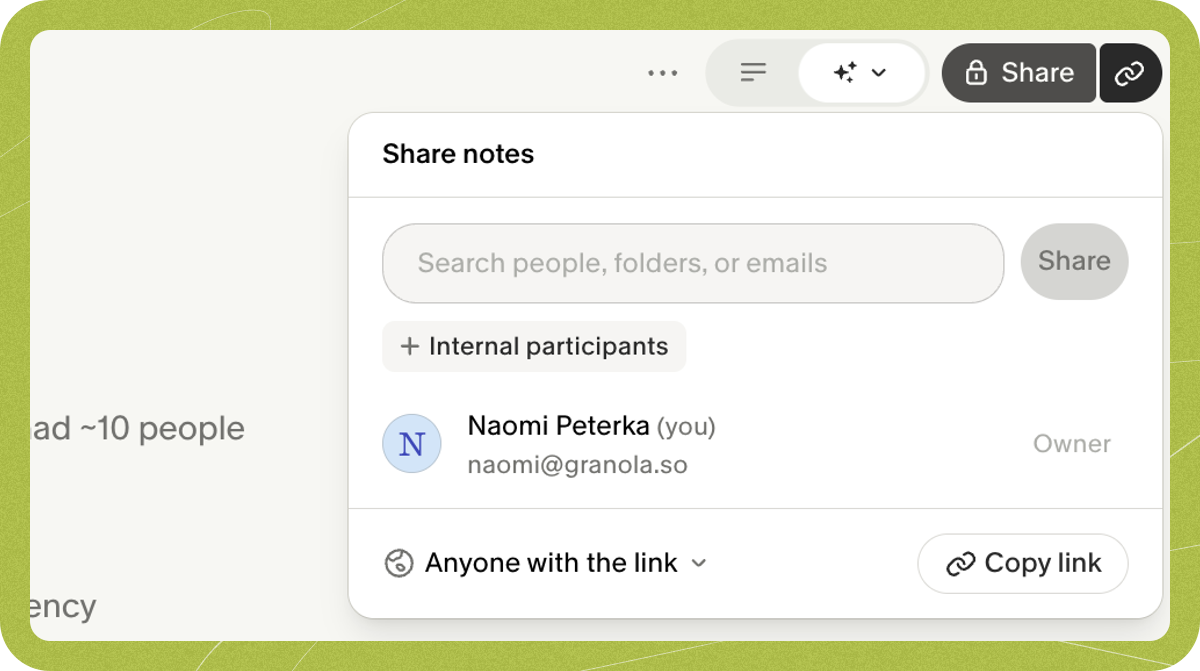
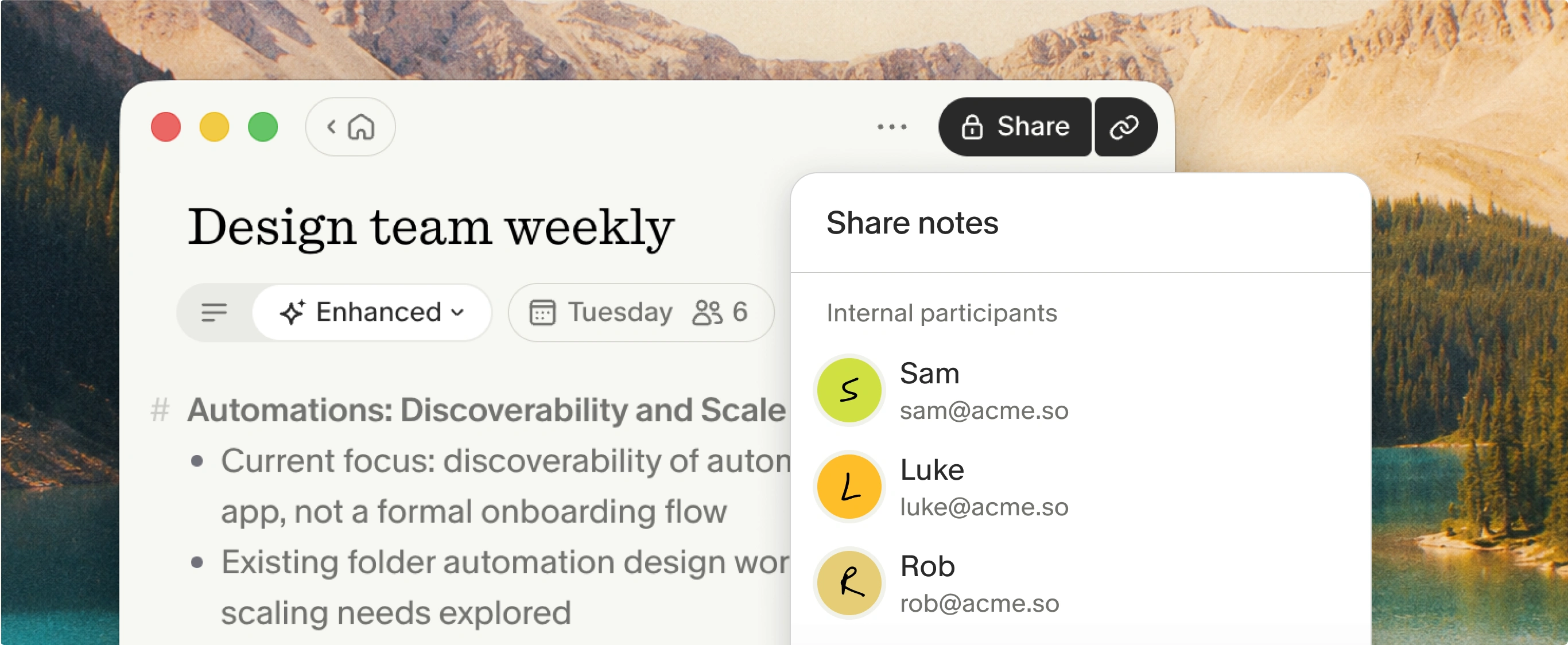
- Granola does not auto-share your notes to attendees. Sharing is always a deliberate step.
- Roles default sensibly: Collaborator for someone on your company domain, Viewer for outsiders.
- Shared notes don’t include the full transcript for privacy reasons. Viewers still get Chat about that meeting.
- Notes can go out to Slack, Notion, HubSpot, Salesforce, Attio, Affinity, Zapier, or an email draft, or be copied as markdown.
Takeaway
Private by default, with a role chosen based on the recipient, is a strong default for any AI that produces content about other people.
Pattern: Shared Session Link
Onboarding and first value
What works
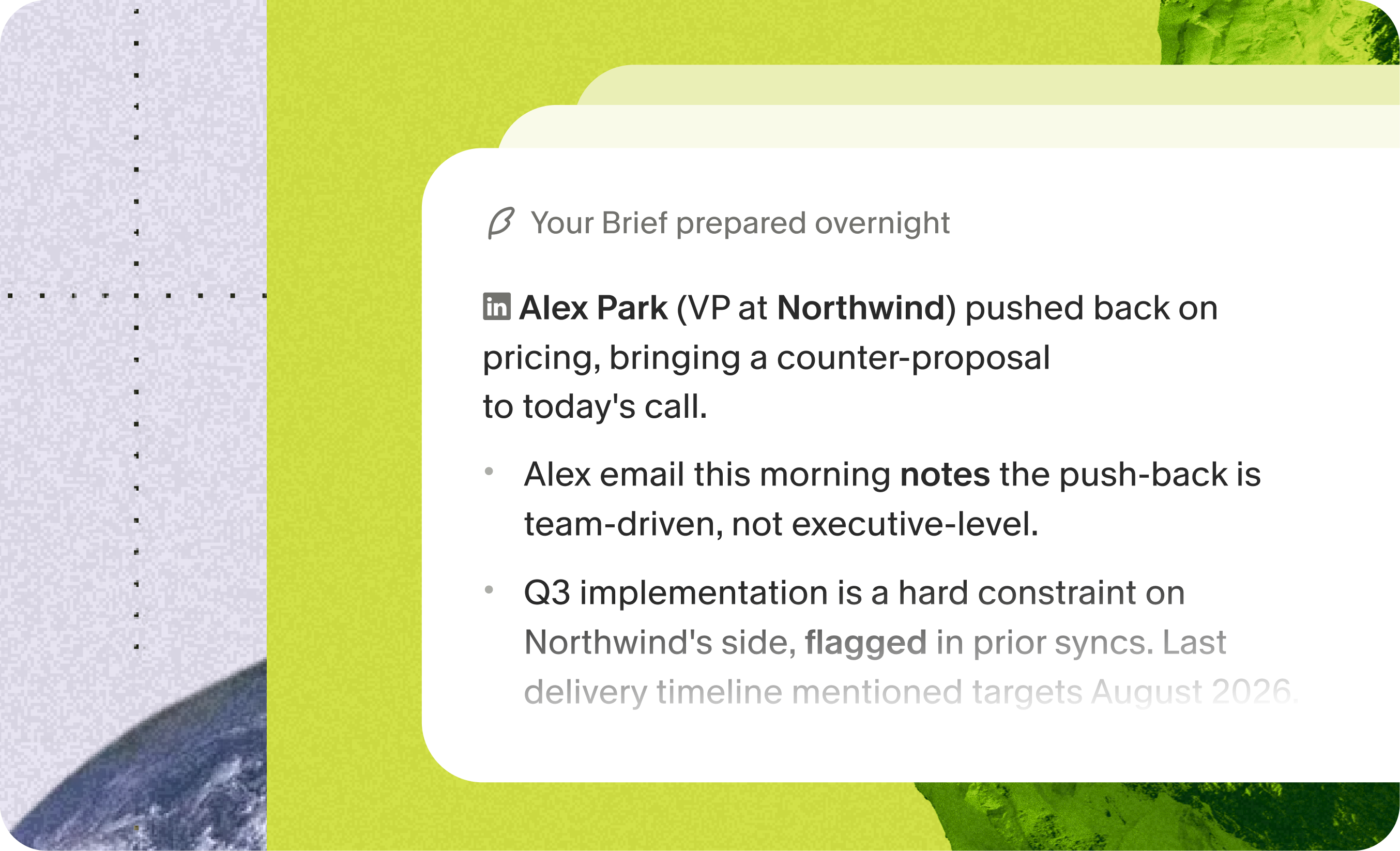
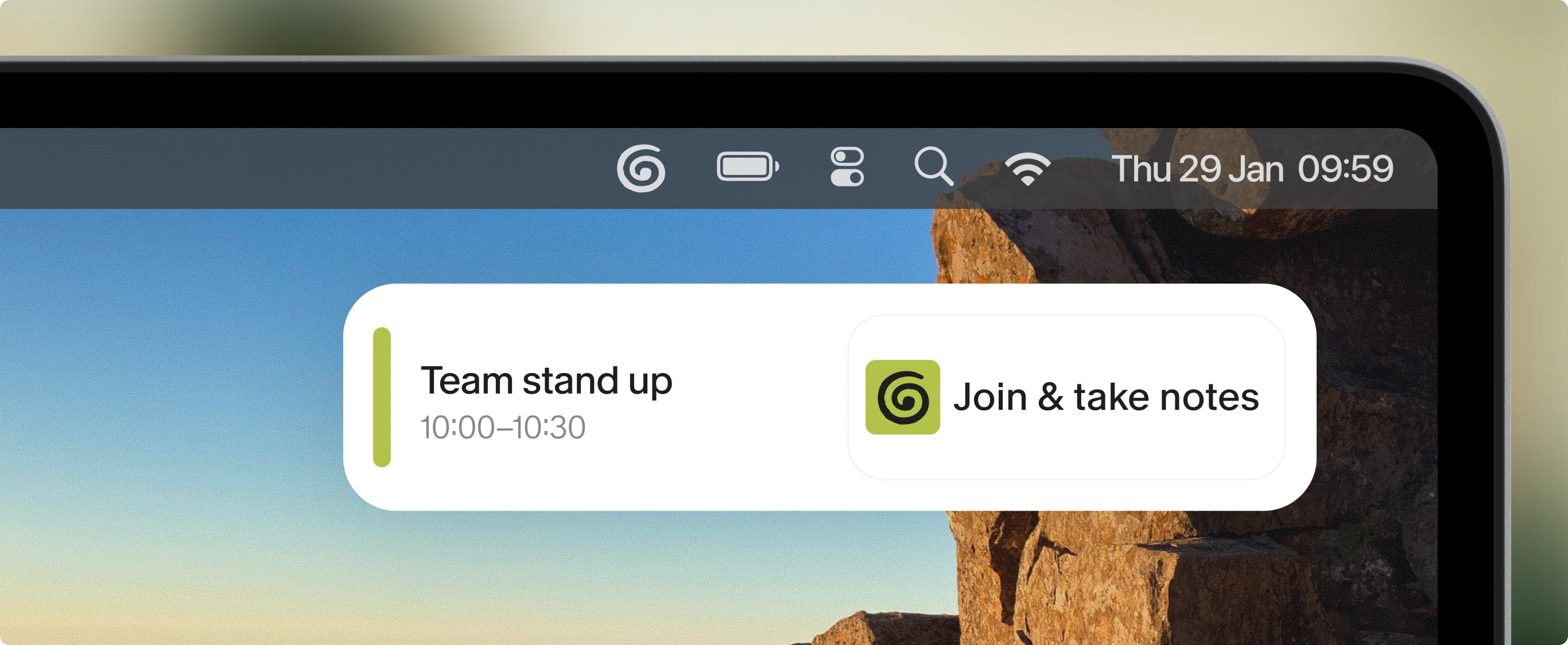
- Calendar sync finds upcoming meetings, and one click starts capture. Granola also preps a Brief before external meetings.
- The user type you pick at install decides which templates you see first.
- First value depends on a real meeting. There’s nothing to see until you hold one, so the calendar and notifications are how users get there.
We could not verify the first-run screens hands-on. This section is based on the public docs only.
Takeaway
When value depends on a real-world event, the calendar is your onboarding.
Trust and privacy
What works
- No stored audio: audio is temporarily cached during the meeting for transcription only and then deleted.
- Notes are private by default with three sharing levels (Private, Only your company, Anyone with link). Admins cannot view your private notes.
- Consent is the user’s responsibility, but Granola provides tools for it: an optional watermark on your camera and an automated message in the meeting chat that everyone can see. You can also pause transcription.
- The Basic plan lets you opt out of model training.
- Not FERPA compliant, which the security FAQ states openly.
Takeaway
If your AI is invisible, make the disclosure easy and visible to everyone.
Pattern: Granular ConsentOptional camera watermark and meeting-chat disclosure when capture is invisible.
Pattern: Memory Management
Tradeoffs at a glance
| Decision | Benefit | Cost |
|---|---|---|
| Capture on the device instead of a bot | Feels natural in the call. Works with every meeting app. | The room may not know. System sounds get captured too. |
| The user’s notes steer the AI summary | Output matches what you cared about. You keep ownership. | Value depends on the user writing something. Raw and enhanced can drift apart. |
| Same / shortcut for templates and recipes | One gesture. Reusable, shareable prompts. | Static prompts with no variables. Duplicates for single vs multi-meeting. |
Takeaways
Copy this
- Invisible capture with one-click ways to tell the room (watermark, chat message)
- User notes that steer the AI summary instead of replacing the user
- Re-generate enhanced notes by swapping templates after the fact
- One / shortcut for templates and recipes
- Chat scope set by where you open it (meeting, folder, person, home)
- Private by default, with Collaborator vs Viewer by email domain
- Charge for history, not capture — free to form the habit
Skip this
- Disclosure that’s off by default for AI that can’t be seen
- Saved prompts without variables
- Paywalls that make users feel they’ve lost their own content
Frequently asked questions
Does Granola join meetings as a bot?
No. Granola captures system audio and your microphone on your own device. Nothing joins Zoom, Meet, Teams, or Slack as an extra attendee.
How do raw notes relate to enhanced notes?
You type rough notes during the call. After the meeting, Granola builds enhanced notes from the transcript, your raw notes, and the calendar event. Your notes steer what the AI focuses on, and you can edit either side and re-enhance.
What are Granola recipes?
Recipes are saved prompt templates for chat. Type / in the chat bar to find Discover, My recipes, and Workspace recipes. Each recipe targets either one meeting or many, and can be shared as a link without exposing your notes.